Showing posts with label to. Show all posts
Showing posts with label to. Show all posts
Way to Jailbreak iPhone 4 On iOS 5 1 With Redsnow Mac OS X
Friday, March 14, 2014

This tutorial will help you to jailbreak your iPhone 4 using Redsnow . First of all i tell you that it is tethered jailbreak so you have to connect your iPhone with Mac computer and re-run redsnow to boot your iPhone 4 into fully operational state every time your iphone loses power. I am also telling you that this jaolbreak will not work on iPhone 4S and that iBooks will not work correctly until iPhone Dev-Team implement a patch that will fix this.
To jailbreak follow these steps .
Step 1: To get started you will need to( download RedSn0w 0.9.1
0b6) on your Mac
Step 2: Once download process is completed start RedSn0w 0.9.10b6 launcher and click Jailbreak button located in middle of your window
Step 3: When the next window shows up, connect your iPhone 4 with your Mac using USB cable and power off your iPhone.
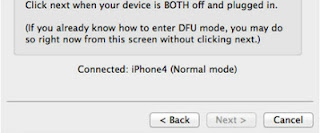
Step 4: When you are ready click Next button in existing window which will start DFU mode process
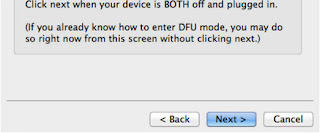

Step 5: When you click Next button simply follow instructions inside redsn0w window and continue clicking Next, after every step you perform on your iPhone (those steps you can find below)
- Hold down the Power (corner) button for 3 seconds
- Without releasing the Power button, also hold down the Home (bottom center) button for 10 seconds
- Without releasing the Home button, release the Power button BUT KEEP holding the Home button for 15 seconds
Step 6: After you have successfully entered in DFU mode with your iPhone 4, redsn0w will begin preparing your iPhone 4 for the Jailbreak
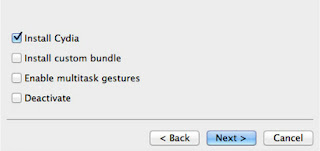
Step 7: Once redsn0w is finished preparing your iPhone 4 for Jailbreak a new window will show up where you need to specify options to go along with Jailbreak. You can specify any option you want but I suggest you to choose only Install Cydia and click Next
Step 8: Once you click next the Jailbreak process will begin, DO NOT interrupt this process and wait until it’s finished. When jailbreak process is finished iPhone will boot up and stuck at Apple logo. If this happens to you it’s because this is a tethered jailbreak and you will need to boot tethered with redsn0w in order to make your iPhone work.
Step 9: To boot your iPhone using redsn0w lunch redsn0w again and click Extras button and then choose Just bootbutton
Step 10: After that you will simply need to put your iPhone into DFU mode again.

Trick To Increase Printing Speed OF Your Printer
Wednesday, February 26, 2014

You can improve the printing speed of your printer with managing the print spooler option. Basically printer spooler holds your prints for some time then send to printer for print out. By default on most printers, printer spooler option is enabled but you can turn it off to specify that the file should be sending to the printer and not spooled.
Here printer spooler option might be at different location in your printer but on most printers you can turn off by going to Start, Settings then Printers. Now right click on the icon of the printer that you are using. Click Properties and select the Advanced tab. Here click on Print directly to printer option. This will tie up your application until the printer has all the data, but your print job should finish more quickly. Printing directly to the printer will also come in handy if your print spooler crashes and you need to print before you reboot your PC.
How To Repair Your USB Drive
Thursday, February 13, 2014

This trick will show you how to fix your not working USB Flash. I have tested it myself and then shared this trick.
Instructions:
- Download THIS FILE
- Now Extract it and You will see the .exe file and Run it as shown below.

- When you open it then 1st Select your USB drive and then Select Non-Active option it is important and finally click on Format button.

- After that you will see a dialog and click on Yes button as shown below.

- After Process Completed then click on Done button so you are done…

- At Last Remove your USB from Computer and Insert again you will see that it Problem will be fixed.
- IMPORTANT NOTE: Your USB data will be lost so 1st backup it if it have.
Subscribe to:
Posts (Atom)


