Showing posts with label how. Show all posts
Showing posts with label how. Show all posts
How To Repair Your USB Drive
Thursday, February 13, 2014

This trick will show you how to fix your not working USB Flash. I have tested it myself and then shared this trick.
Instructions:
- Download THIS FILE
- Now Extract it and You will see the .exe file and Run it as shown below.

- When you open it then 1st Select your USB drive and then Select Non-Active option it is important and finally click on Format button.

- After that you will see a dialog and click on Yes button as shown below.

- After Process Completed then click on Done button so you are done…

- At Last Remove your USB from Computer and Insert again you will see that it Problem will be fixed.
- IMPORTANT NOTE: Your USB data will be lost so 1st backup it if it have.

Nokia Lumia 920 Resetting
Monday, December 23, 2013
Unfortunately Windows Phone 8 is turning out not to be half as stable as Windows Phone 7.5. Spontaneous soft resets (which seems to affect about 20% of our readers) are one thing, but when my new Nokia Lumia 920 ended up frozen and unresponsive on the boot-up screen I got a bit scared, especially due to all the stories of bricked phones. The issue seems pretty common also, with all three WMPU editors who have Nokia Lumia 920s having their phones freeze. Of course without a removable battery a quick battery pull will not save you.
If this should happen to you (which anecdotally seems likely) to soft reset the Nokia Lumia 920 press and hold the power button and volume down button for about 10 seconds will do the trick; the phone should vibrate and reboot your phone.
If this fails a hard reset is the next step, but be warned that this is where the reports of bricking have come from. To hard reset hold the volume down, power button and camera button until the phone vibrates, then release the power button and keep the volume down and camera button down for another 5 seconds.Your phone should then reset to factory state.
If your phone does get bricked here is a procedure that may salvage it, but it may be much more reliable and better to simply return the handset.
How to enter the Unlocking Code for a Pantech Model phone
Saturday, December 7, 2013

Option 1 - Pantech Models
1. Turn on your phone with an original SIM Card in it
2. Type the following: * # 8 6 5 6 2 5 #
3. A SIM Unlock Menu will appear, press Ok
4. Enter Unlock Code + * (8 digit code)
5. Re-enter Unlock Code + * (8 digit code)
6. The phone will display Unlock Process Complete
7. Press Ok
7. The phone is now unlocked.
2. Type the following: * # 8 6 5 6 2 5 #
3. A SIM Unlock Menu will appear, press Ok
4. Enter Unlock Code + * (8 digit code)
5. Re-enter Unlock Code + * (8 digit code)
6. The phone will display Unlock Process Complete
7. Press Ok
7. The phone is now unlocked.
Option 2 - Pantech Models
1. Insert a not accepted SIM Card and turn the phone on2. When prompted, enter the unlocking code provided
(Note: Use the onscreen keyboard and make sure that wireless mode is off)
3. Your phone will now be unlocked.
Option 3 - Pantech Models
1. Insert an non-accepted SIM Card and turn ON your phone2. A hidden Sim Unlock Menu will appear
3. Enter the Unlock Code provided
4. The phone will display the message Unlock Process Complete
5. The phone will now be unlocked.
How to Master Reset Motorola Spice XT300 Hard Reset Motorola Spice XT300
Tuesday, November 19, 2013
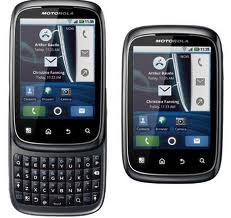
- To perform a Master Reset on your Motorola Spice XT300 reset follow the steps below:
- with the phone off, press the power button and the "X" key on the keyboard
- When the triangle appears press the "alt" and the "w" key on the keyboard
- let the Motorola Spice XT300 reboot and your done!
Subscribe to:
Posts (Atom)


